Flashing the firmware
Warning
Flashing the firmware can make your receiver unusable.
Before proceeding, please check whether the receiver board has BOOT & RESET buttons soldered, which can help to recover it. Also there is a way to back up the stock firmware, so you can roll back to it if you want.
Firmware files
Hint
The firmware releases are available on GitHub. You’ll need either OSPI or QSPI variant depending on the ESP32-S3 PSRAM type, see the following table:
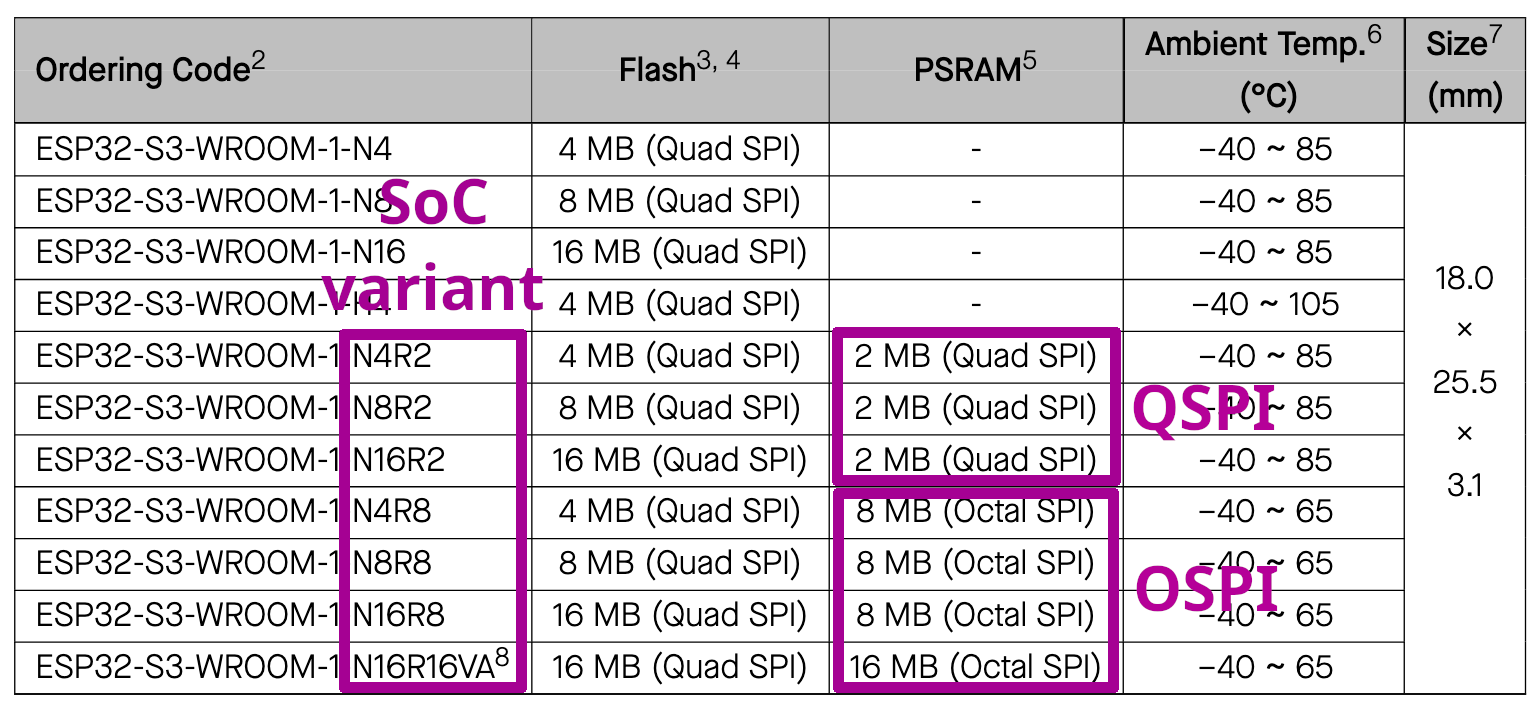
With the right firmware variant you should see a non-zero PSRAM amount on the Settings->About system info screen. Also check out the following discussion: OSPI vs QSPI: How can I see what I have?.
The lilygo-t-embed variant only works on LILYGO T-Embed SI4732 receiver. WARNING: flashing a different firmware can damage the receiver.
A firmware archive contains the following files:
CHANGELOG.md- the text file that describes what’s new in each firmware versionats-mini.ino.bootloader.bin- the bootloader (should be flashed at address0x0)ats-mini.ino.partitions.bin- the partition table (should be flashed at address0x8000)boot_app0.bin- ensures the receiver starts the newly flashed firmware (should be flashed at address0xe000)ats-mini.ino.bin- the application firmware (should be flashed at address0x10000)ats-mini.ino.merged.bin- the four previous binary files combined into one (should be flashed at address0x0)
So, you need to flash your receiver using just one of the following two ways:
Flash the four files (2 -
bootloader, 3 -partitions, 4 -boot_app0, 5 -firmware) using the right addresses. The receiver settings might be reset in some versions.
OR
Only flash the last file (6 -
merged) using the0x0address. The receiver settings will be always reset.
Do not omit boot_app0.bin when flashing separate files. For older release archives without this file, use the merged image instead.
Update over Wi-Fi
To download the latest release, connect the receiver to the internet over Wi-Fi and make sure its date and time are correct.
On the receiver, open Settings → Update FW. Choose Check to see the available version, or Update to install it.
In the web interface, open Update, select Check for updates, then press Update. Use the same login and password as the configuration page, if configured.
The matching firmware is selected automatically. If that version is already installed, the receiver shows “Already up to date”.
For manual upload, expand Manual upload on the web page, select the ats-mini-vVERSION-VARIANT-ota.bin or ats-mini.ino.bin file for your receiver variant, then press Upload. This works without internet access and can reinstall the same version.
Press the encoder to cancel while firmware is transferring. Once the update is finalizing, let the receiver restart.
Upload from one browser at a time; if the connection drops, reconnect and retry. If the update reports that USB flashing is required, follow the USB instructions below.
Flash using a web browser
Works on: Windows, macOS, Linux
This is the simplest method, but you need a browser that supports the Web Serial API. This means Chrome and some other browsers. No, Firefox and Safari can’t do it.
Tip
On Linux, please make sure that the user account that runs your browser has the necessary permissions to access the serial port.
Connect your receiver to a computer using USB and power it on.
A new serial port should appear. On Windows check the USB Serial COM port in the Windows Device Manager, on macOS it will look like
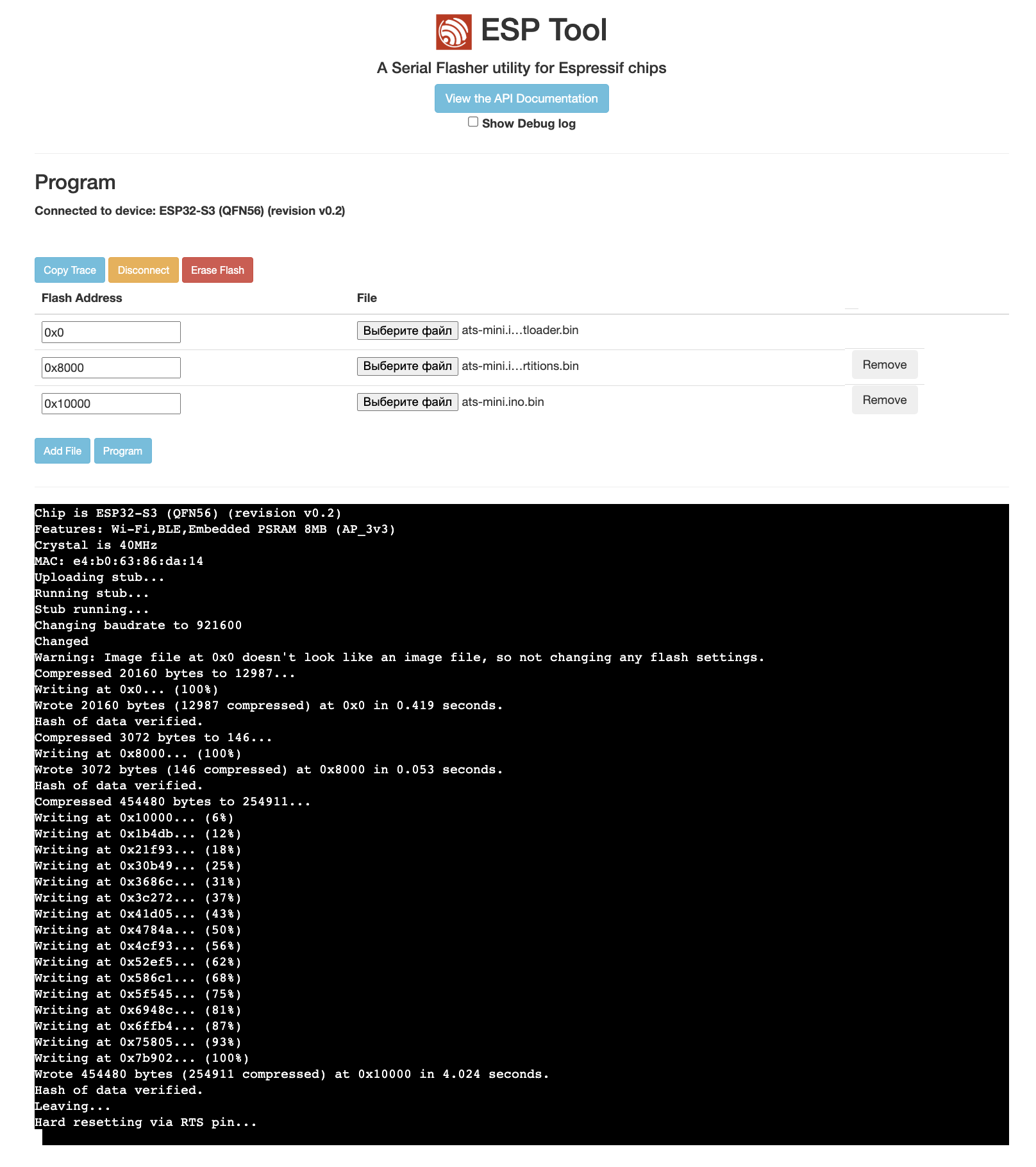
/dev/tty.usbmodemXXXX, on Linux like/dev/ttyACMX.Open the following link: https://espressif.github.io/esptool-js/
Press the
Connectbutton and choose the right serial port.Add either the four separate firmware files at the right addresses, or the merged one at
0x0.Press the
Programbutton.Wait until the following text will appear in the black serial log window:
Leaving... Hard resetting via RTS pin...Press the
Disconnectbutton.Power off and power on the receiver.
Check out the firmware version in Menu -> Settings -> About on the receiver.
Flash Download Tool
Works on: Windows
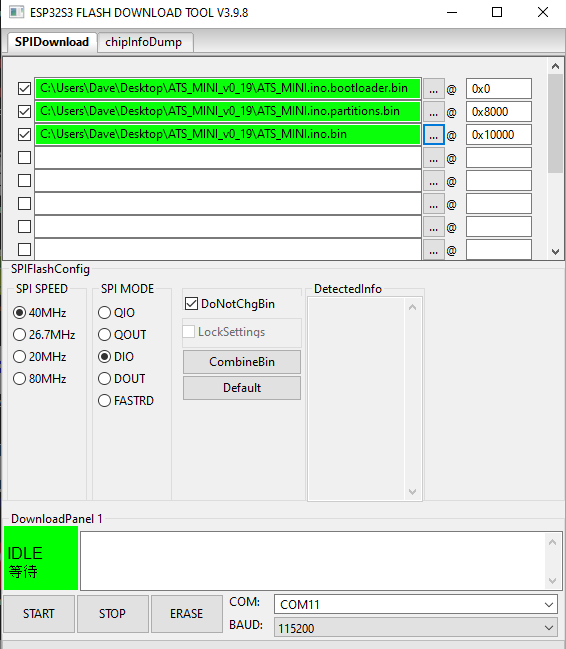
Download the Expressif Flash Download Tool, unpack the archive.
Connect your receiver to a computer using USB and power it on.
A new serial port should appear, check the USB Serial COM port in the Windows Device Manager.
Run the
flash_dowload_toolexecutable file.Choose
Chip Type: ESP32-S3,WorkMode: Develop,LoadMode: UART.Add either the four separate firmware files at the right addresses, or the merged one at
0x0. Enable the check boxes next to the file bars.Set the COM port and other settings.
After checking all information is correct, press the
STARTbutton.Wait until the following text will appear in the black log window:
is stub and send flash finishPower off and power on the receiver.
Check out the firmware version in Menu -> Settings -> About on the receiver.
esptool.py
Works on: Windows, macOS, Linux
Install
uv(Windows, macOS, Linux) https://docs.astral.sh/uv/getting-started/installation/Connect your receiver to a computer using USB and power it on.
A new serial port should appear. On Windows check the USB Serial COM port in the Windows Device Manager, on macOS it will look like
/dev/tty.usbmodemXXXX, on Linux like/dev/ttyACMX.Run just one of the two following commands (the first one uses four separate firmware files, the second one uses the single merged firmware file):
uvx --from esptool esptool.py --chip esp32s3 --port SERIAL_PORT --baud 921600 --before default-reset --after hard-reset write_flash  -z --flash-mode keep --flash-freq keep --flash-size keep 0x0 ats-mini.ino.bootloader.bin 0x8000 ats-mini.ino.partitions.bin 0xe000 boot_app0.bin 0x10000 ats-mini.ino.bin

# OR

uvx --from esptool esptool.py --chip esp32s3 --port SERIAL_PORT --baud 921600 --before default-reset --after hard-reset write-flash  -z --flash-mode keep --flash-freq keep --flash-size keep 0x0 ats-mini.ino.merged.bin
Check out the firmware version in Menu -> Settings -> About on the receiver.